DPTable Editor
The DPTable Editor is a core tool within the Mervis IDE used for managing, importing, and updating data points for your projects. This guide covers typical user scenarios, including importing variables (SCADA metadata) and organizing data point groups.
Importing SCADA Variables
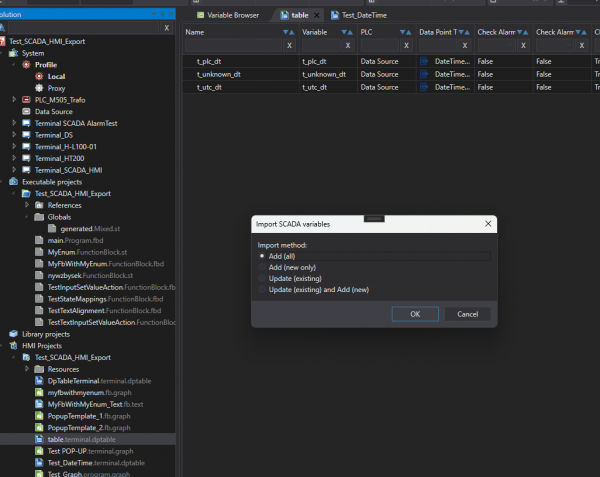
The Import SCADA variables dialog provides granular control over how variables are brought into your project and updated. Depending on how you initiate the import, you may be prompted to select a source or jump directly to choosing an import method.
Selecting a Source
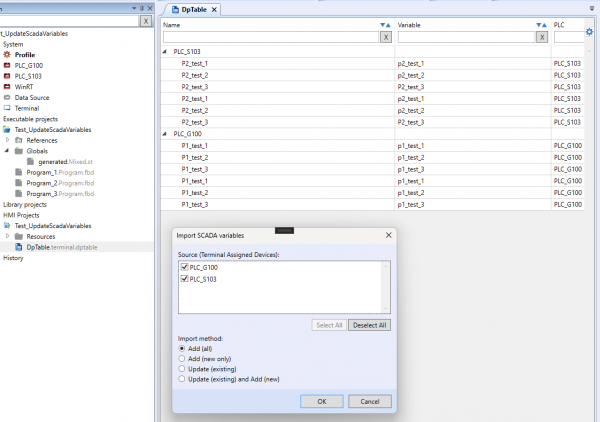
When importing globally, you can specify the exact hardware source using the Source (Terminal Assigned Devices) list.
- You can use the checkboxes to filter and select specific sources, such as individual PLCs (e.g., PLC_G100, PLC_S103).
- The dialog also includes Select All and Deselect All buttons for quick management of larger device lists.
Import Methods
The dialog allows you to choose exactly how the incoming data should be handled via the Import method radio buttons. The available options are:
- Add (all): Imports all selected variables as new entries.
- Add (new only): Imports only the variables that do not already exist in the current project.
- Update (existing): Refreshes the metadata for variables currently in the project without adding new ones.
- Update (existing) and Add (new): Synchronizes the project by updating current variables and importing any new ones found in the source.
Context Menu Operations
By right-clicking on specific data points or entire device groups within the editor list, you can access a context menu for targeted updates and management.
Targeted Updates
Instead of globally updating all points, you can target specific selections:
- Update from SCADA Variable: A dedicated function accessible directly over a highlighted data point or group to pull the latest SCADA metadata for that specific selection.
Data Point and Group Management
To keep your DPTable organized, especially after extensive imports or project changes, you can use built-in management tools found in the context menu:
- Delete Empty Groups: Quickly clean up your workspace by removing any data point groups that no longer contain active variables.
User Friendly Naming
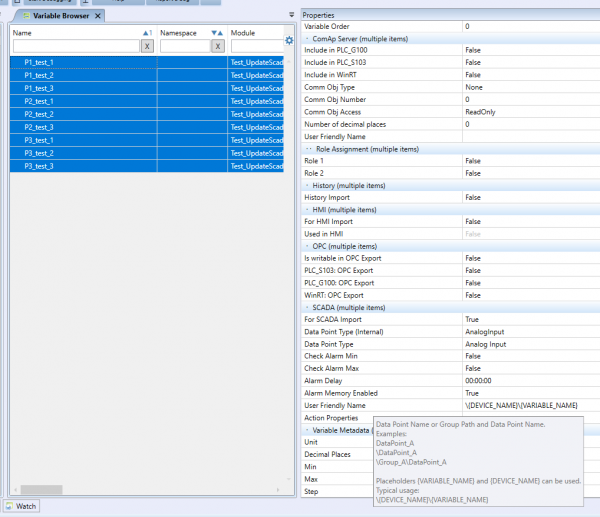
When configuring data points in the Variable Browser, you can automate naming conventions using the Properties panel. Under the SCADA section, the User Friendly Name field supports dynamic placeholders.
Supported placeholders:
- `{DEVICE_NAME}`
- `{VARIABLE_NAME}`
Typical Usage: To format the path and name, a typical entry looks like `\{DEVICE_NAME}\{VARIABLE_NAME}`.