Mastering Direct Switch Technology
In a standard automation system, when you press a light switch, the signal travels to the computer “brain” (CPU), gets processed, and is then sent back out to turn on the light. This can sometimes cause a tiny delay—a “lag” that makes the switch feel unresponsive.
Direct Switch solves this. It creates a direct, instant link between the switch and the light, bypassing the computer's thinking process entirely. The result is zero-latency lighting control that feels instant.
1. Simple Configuration Guide
You control Direct Switch using three simple settings (variables) for each input. You can find these in the Properties Panel when you select an input in the Solution Explorer.
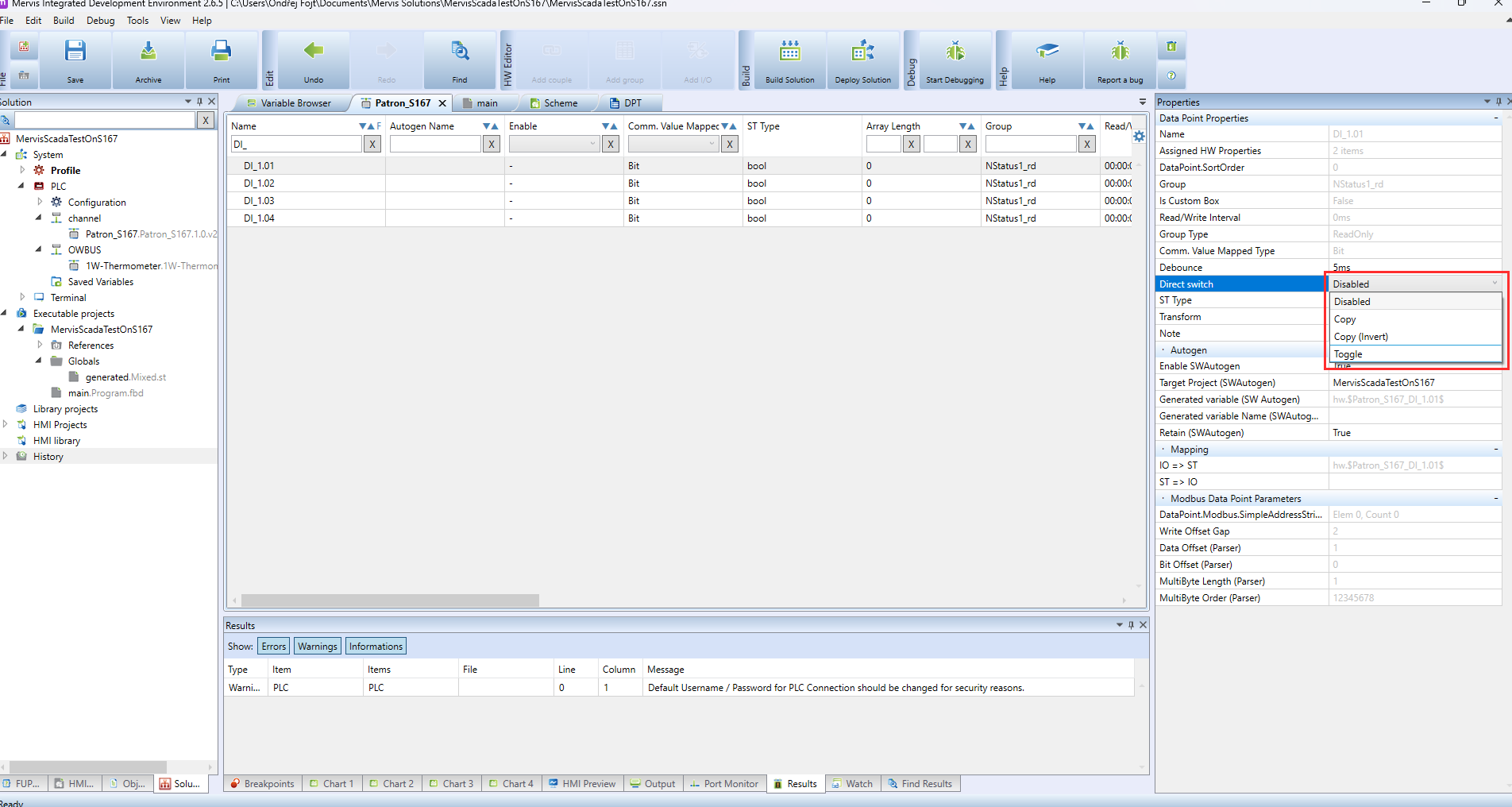
| Setting | What it does | Options |
|---|---|---|
| Enable (DS_enable) | The “Master Switch” for this feature. | TRUE: Connects the input directly to the output (Instant). FALSE: Standard mode (Normal delay). |
| Polarity (DS_polarity) | Decides if the light does the opposite of the switch. | TRUE: Inverted (Switch ON = Light OFF). FALSE: Normal (Switch ON = Light ON). |
| Toggle (DS_toggle) | Decides how the button behaves. | TRUE: Click once to turn ON, click again to turn OFF (like a normal room switch). FALSE: Momentary (Light is ON only while you hold the button). |
2. "Recipe" for a Standard Light Switch
To make a standard push-button light switch (click to turn on, click to turn off), use these exact settings:
- Enable: Set to TRUE (Turn the feature on).
- Polarity: Set to FALSE (Normal behavior).
- Toggle: Set to TRUE (Latch the light on).
This gives you professional-grade lighting control without writing a single line of code.