Tutorial: Creating and Deploying Your First Project
This tutorial guides you through creating a new project in Mervis IDE, connecting to your hardware via the network scan, and deploying your first logic program.
1. Prerequisites
Before you begin, ensure you have the following:
- Mervis IDE installed on your computer.
- A Supported PLC Controller connected to the same network as your PC via Ethernet.
- The controller is powered on (Ready LED is active).
2. Creating a New Project
- Open Mervis IDE.
- In the top menu, go to File > New Solution.
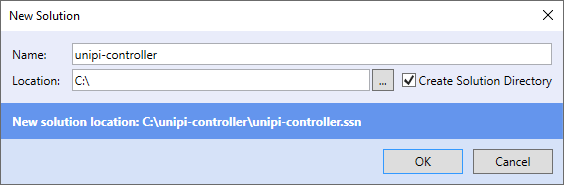
In the dialog window:
- Project Name: Enter a name for your project (e.g., “MyFirstProject”).
- Mode: Select Simple Mode.
- Note: Simple Mode is recommended for beginners. It automatically pre-configures the communication channels and basic project structure.
- Click Create.
3. Connecting to the Controller (Attach PLC)
Instead of manually configuring the IP, we will use the “Attach” feature to scan the network.
- In the Solution Explorer (left panel), right-click on the PLC object.
- Select Attach PLC.
- Select Probing Method: Choose UDP broadcast and click Next.
- Credentials: Enter the default login (usually `admin` / `rw`) and click Next.
The IDE will now scan your local network.
- Select your controller from the list of Found PLCs.
- Click Finish/OK to confirm.
4. PLC Configuration & Security
Once attached, the PLC properties are displayed in the right-hand panel.

Security Warning: Default credentials should be changed immediately to prevent unauthorized access.
1. In the Solution Explorer, expand PLC > Configuration.
2. Change the password for the Engineering user (admin).
3. Update the PLC Connection Parameters in the Properties panel to match your new password.
5. Creating a Simple Program
Your project automatically includes a `main` program file.
- Double-click main in the Solution Explorer to open the editor.
- Adding Function Blocks: Drag blocks (e.g., *Pulse Generator*) from the Library Browser on the right into the workspace.
- Linking Hardware: To link a physical output (like a relay):
- Right-click on the workspace.
- Select Insert existing variable.
- Choose your output (e.g., `DO_1.01`) from the list.
- Connect the function block output to this variable.
6. Building and Deploying
- Build: Click the Build Solution icon in the top ribbon (or press F7).
- Ensure the “Results” window at the bottom shows Build Success.
- Deploy: Click the Deploy Solution icon in the top ribbon.
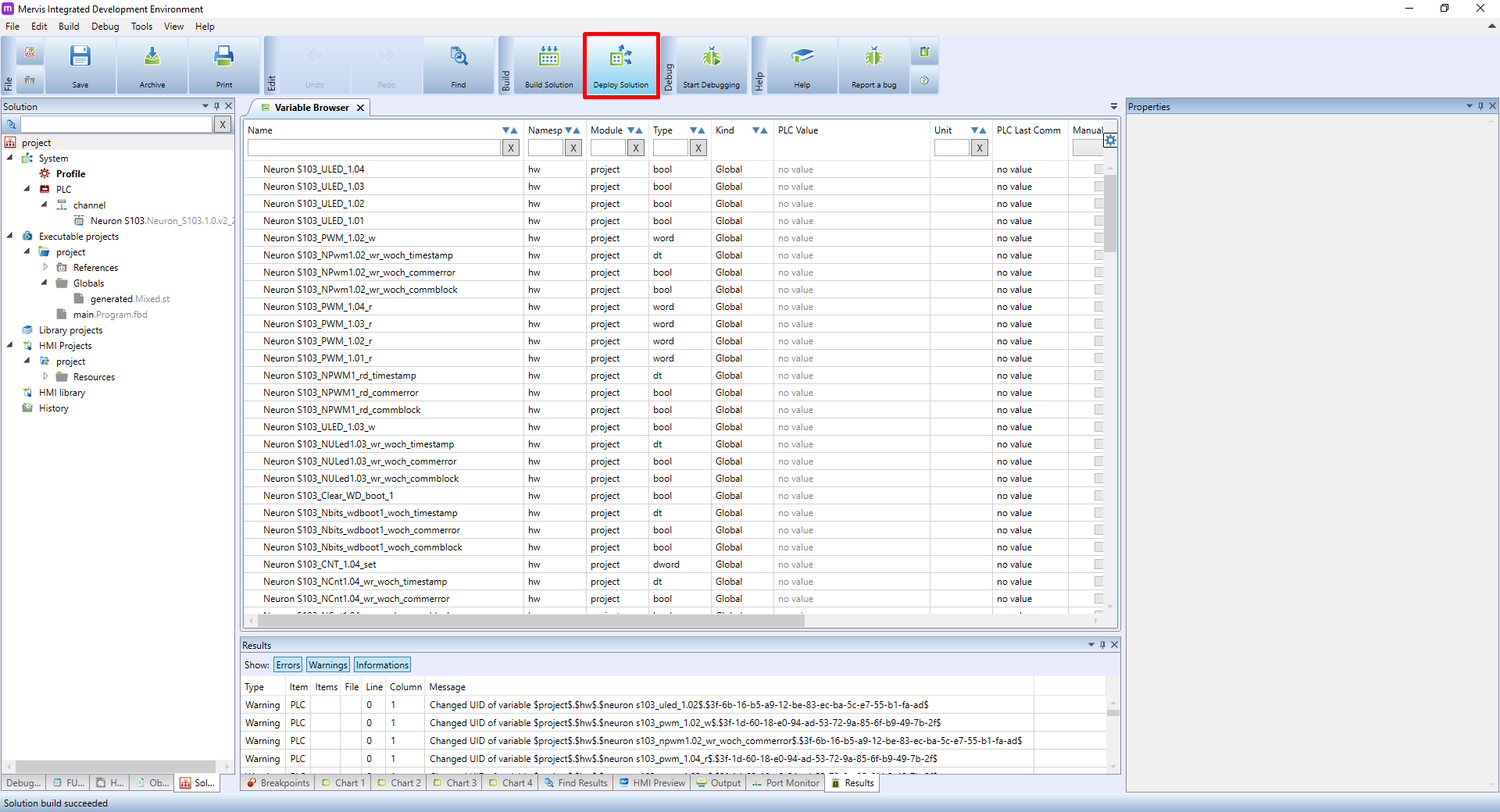
You will be prompted to select a restart mode:
- Warm Restart: Keeps current variable values (recommended for updates).
- Cold Restart: Resets all variables to defaults (recommended for first upload).
7. Debugging
To view the program running live:
- Click the Debug icon (Play button) in the top toolbar.
- You will see live values changing in your function block diagram (e.g., True/False states switching).