Installation on the iOS System
Application Installation
Follow these steps to install Mervis SCADA as a Progressive Web App on your iPhone or iPad.
- Open Safari and navigate to https://scada.mervis.info/mobile.
- Tap the Share icon in the browser toolbar.
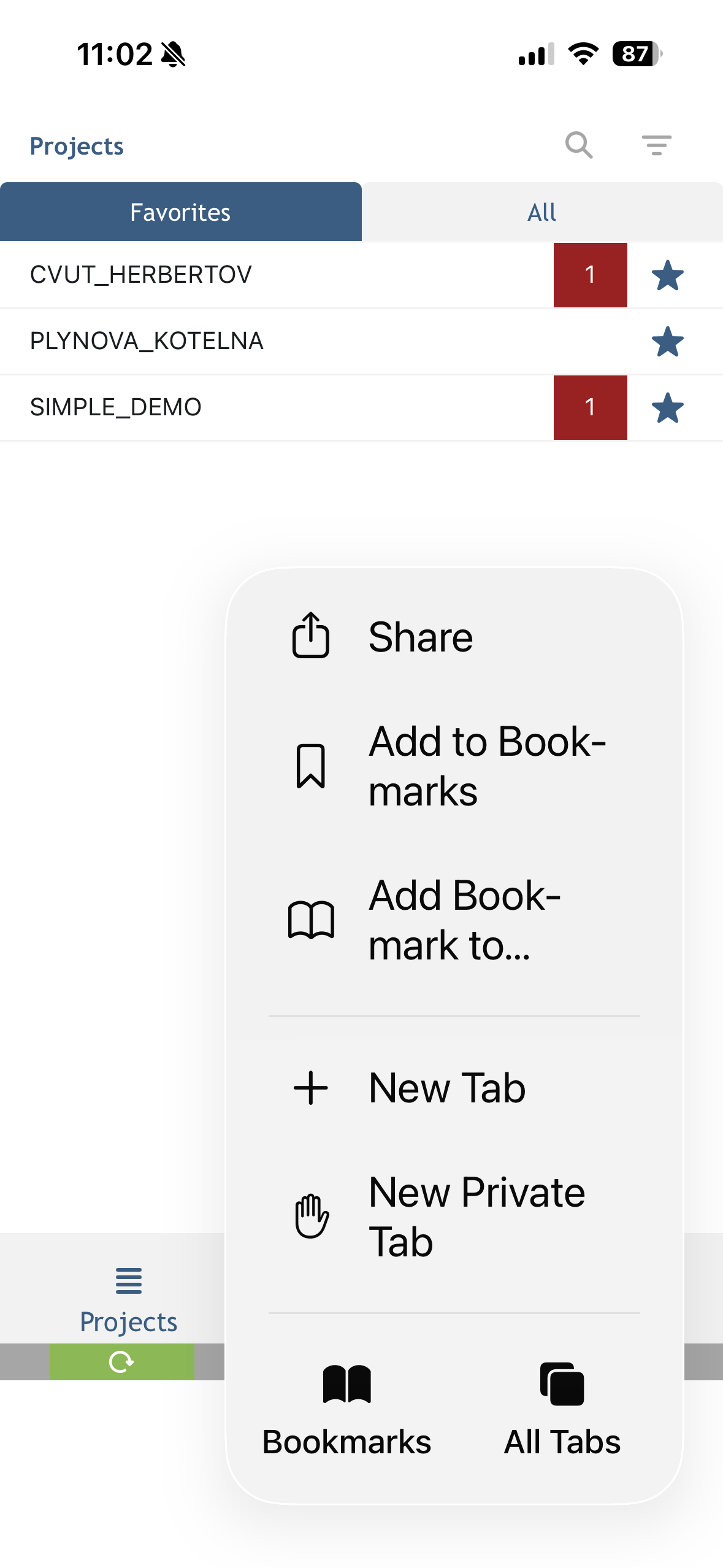
The Share menu in Safari
- Scroll down through the share options until you see Add to Home Screen, and tap it.
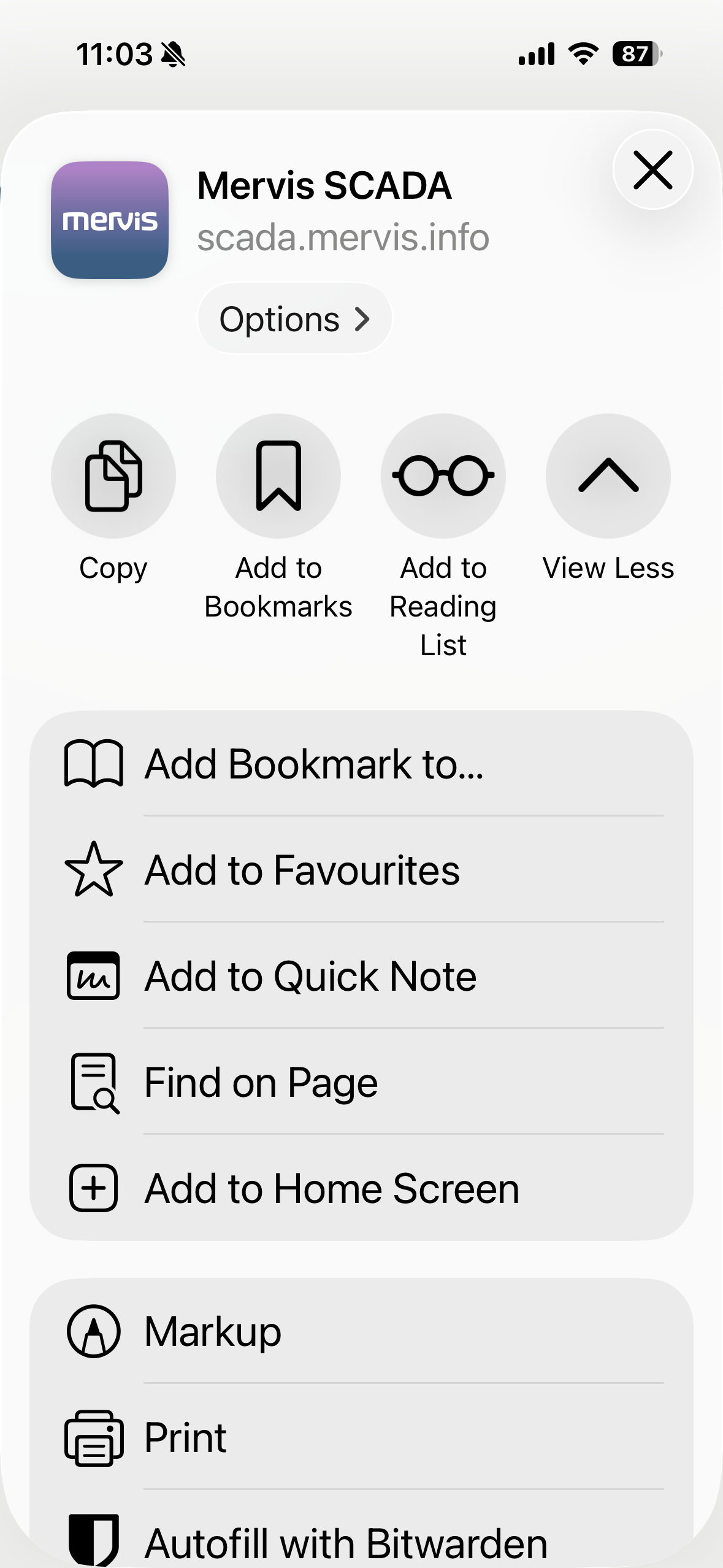
Locating “Add to Home Screen” in the expanded menu
- Confirm the app name (e.g. “Mervis”) and tap Add in the top-right corner.
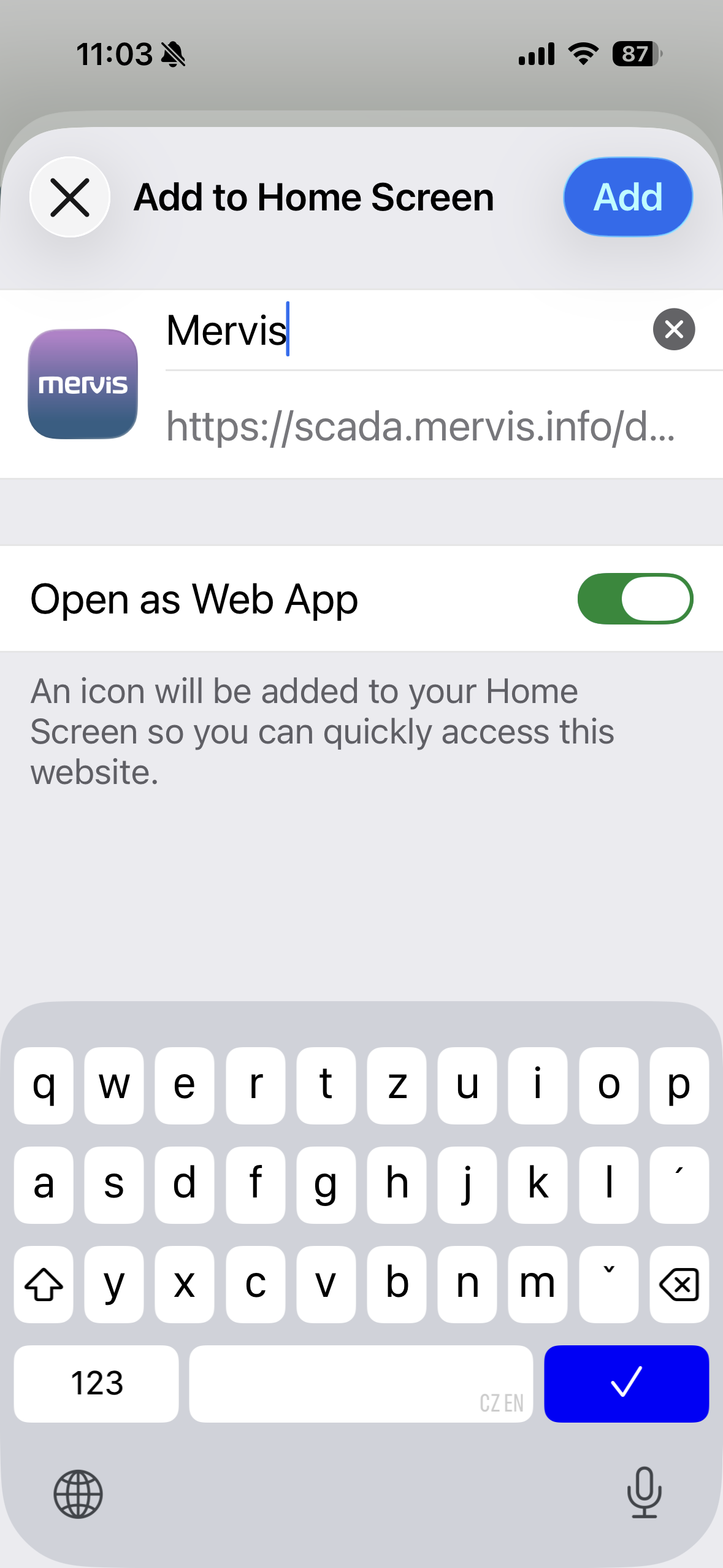
Confirming the app name before adding it
- The Mervis icon will now appear on your Home Screen, ready to launch like any other app.
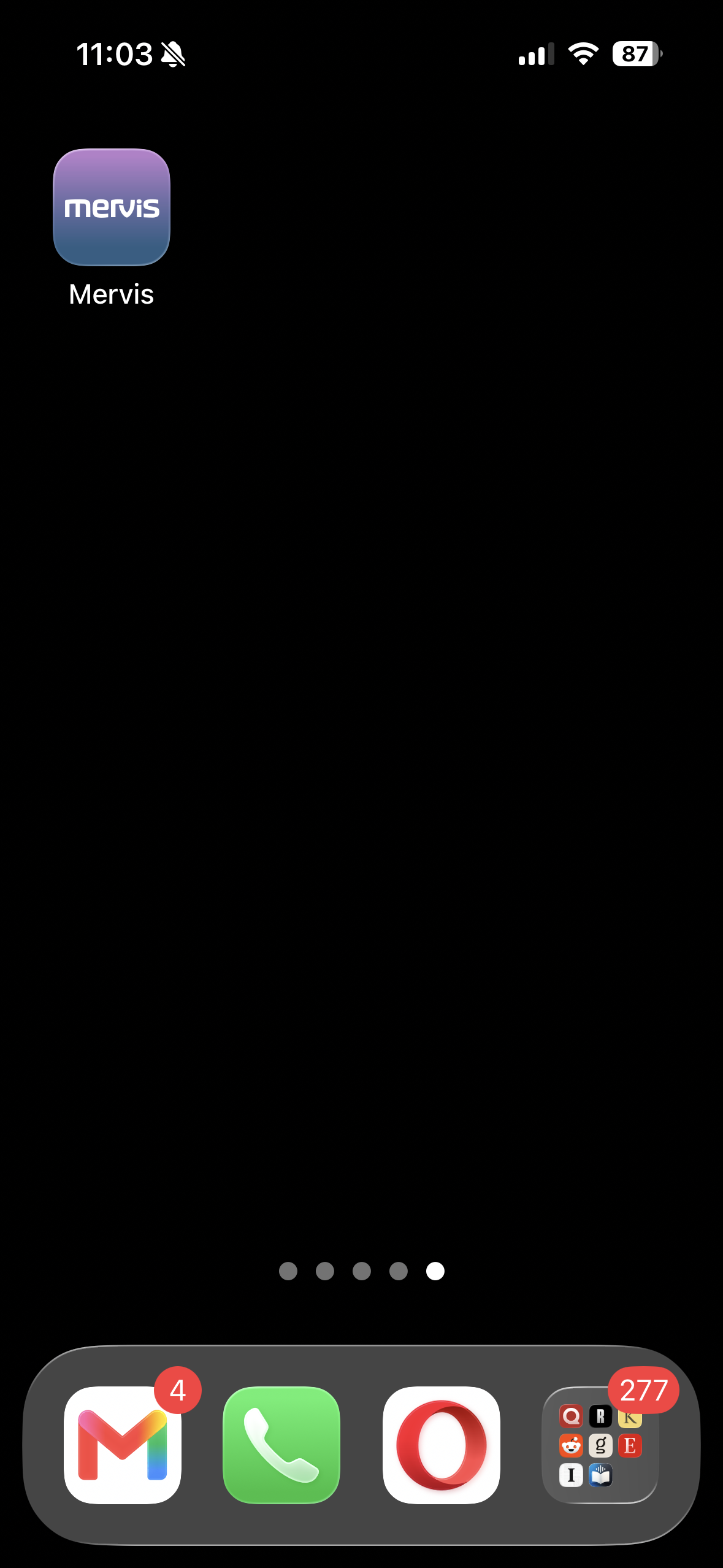
Mervis icon added to the iOS Home Screen
Login
After launching the installed app, log in using your standard Mervis SCADA credentials.
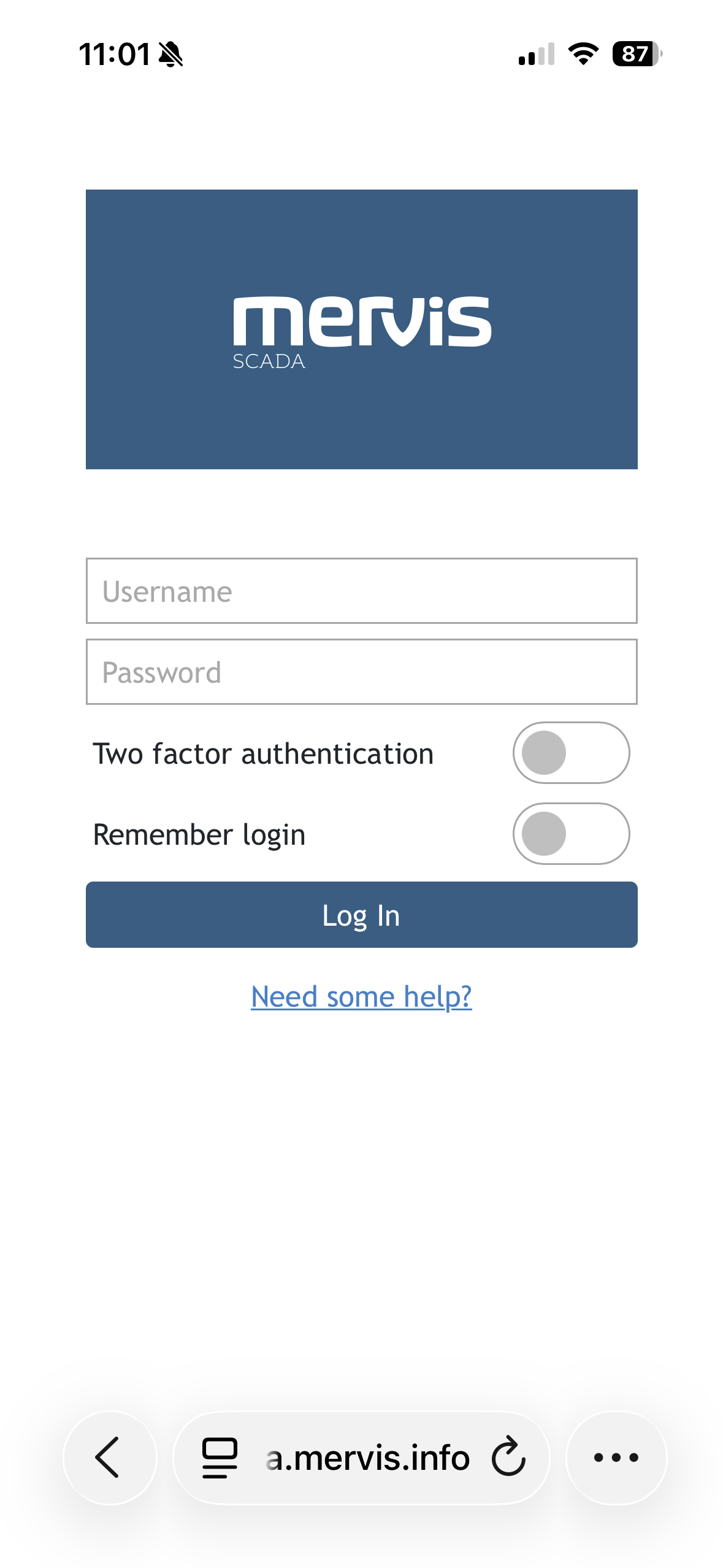
Mobile login screen
Projects - Project List
Once logged in, your list of projects is displayed. A few things to note:
- Projects can be added to favorites by tapping the star icon.
- The number of data points with communication faults is indicated by an orange badge
 .
. - The number of data points with active alarms is indicated by a red badge
 .
.


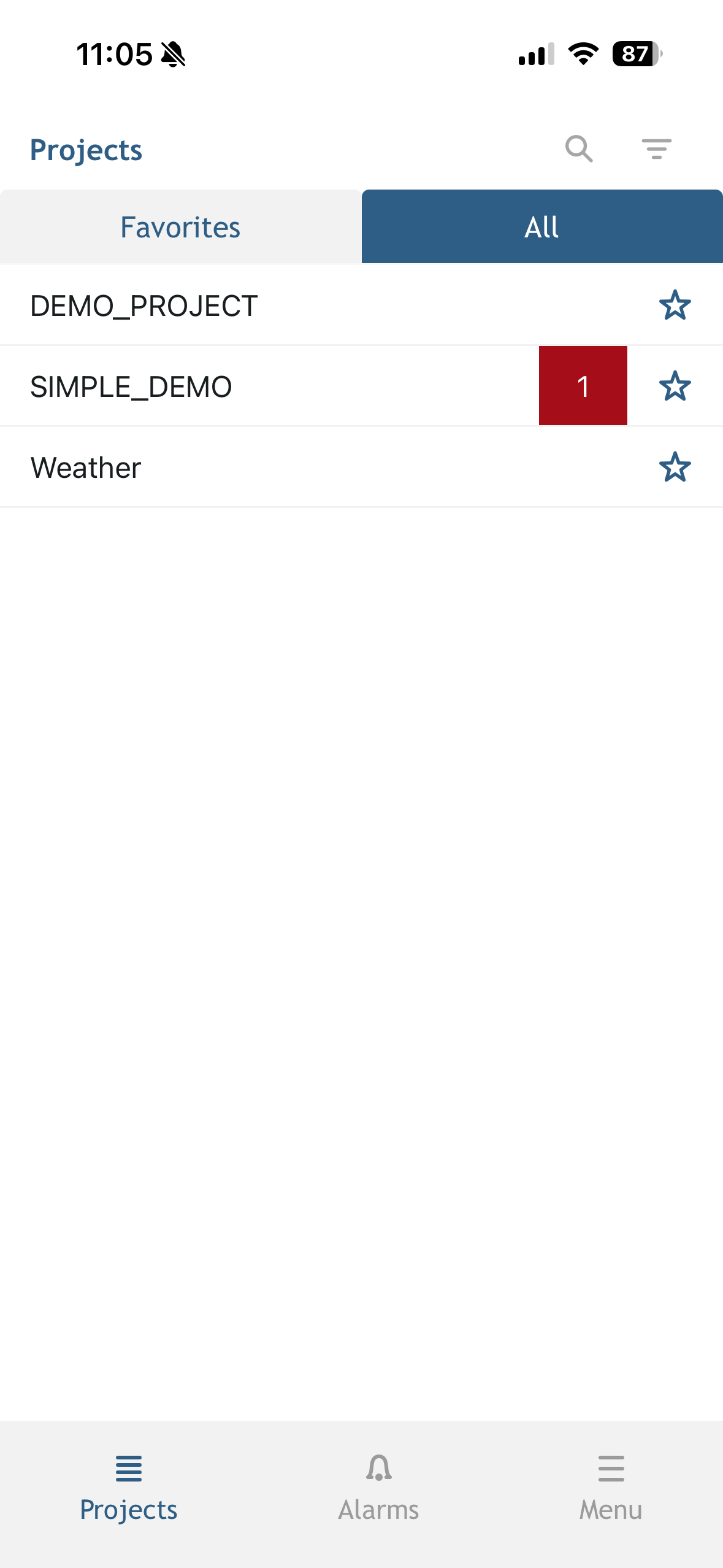
Project list
Text View and Graphs
Tapping a project opens it in text (table) view.
- Data points with control capability are highlighted in blue on the left side of the row.
- The timestamp of the last update is shown by a highlight on the right side of the row.
- Tap and hold a data point to select it — the row turns green, and its history can then be displayed as a line graph.
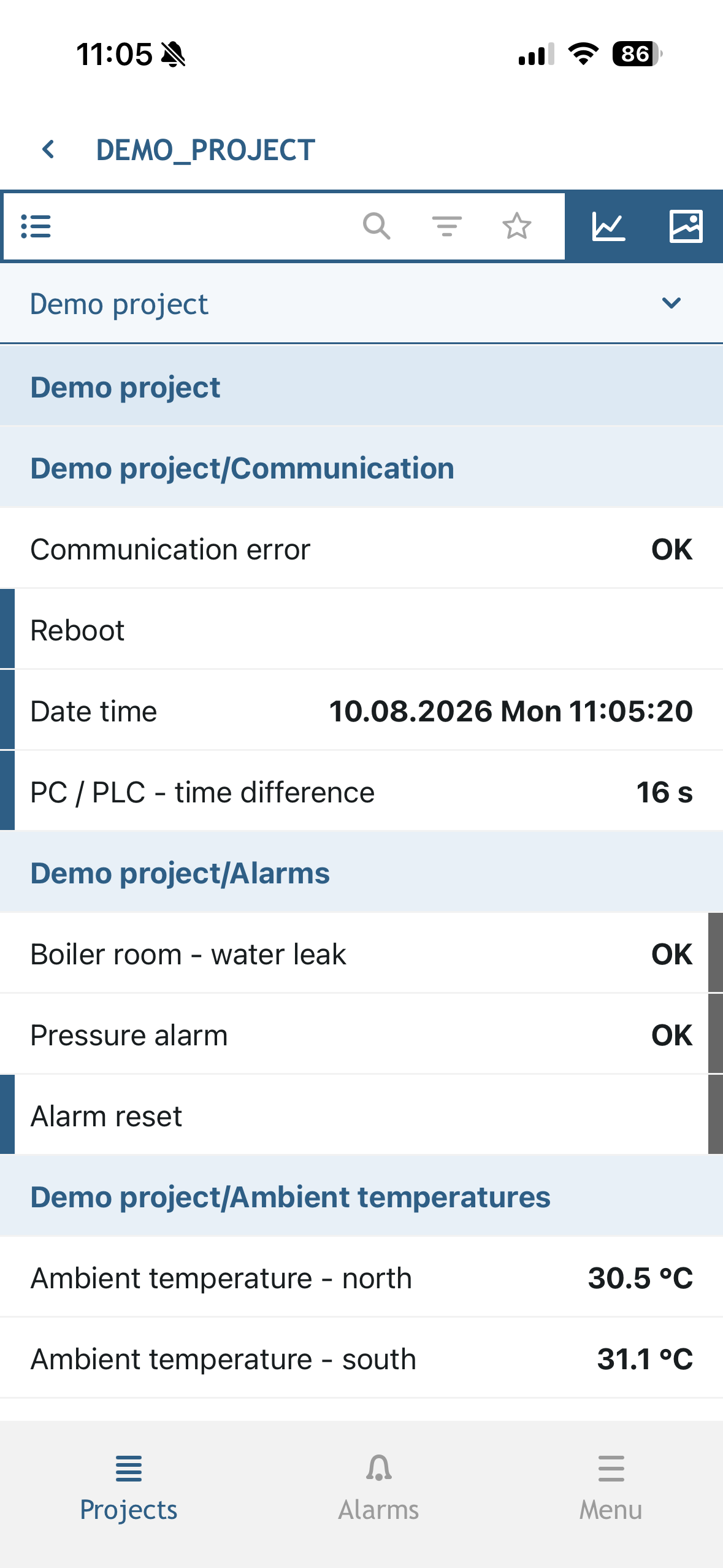
Project detail in text view
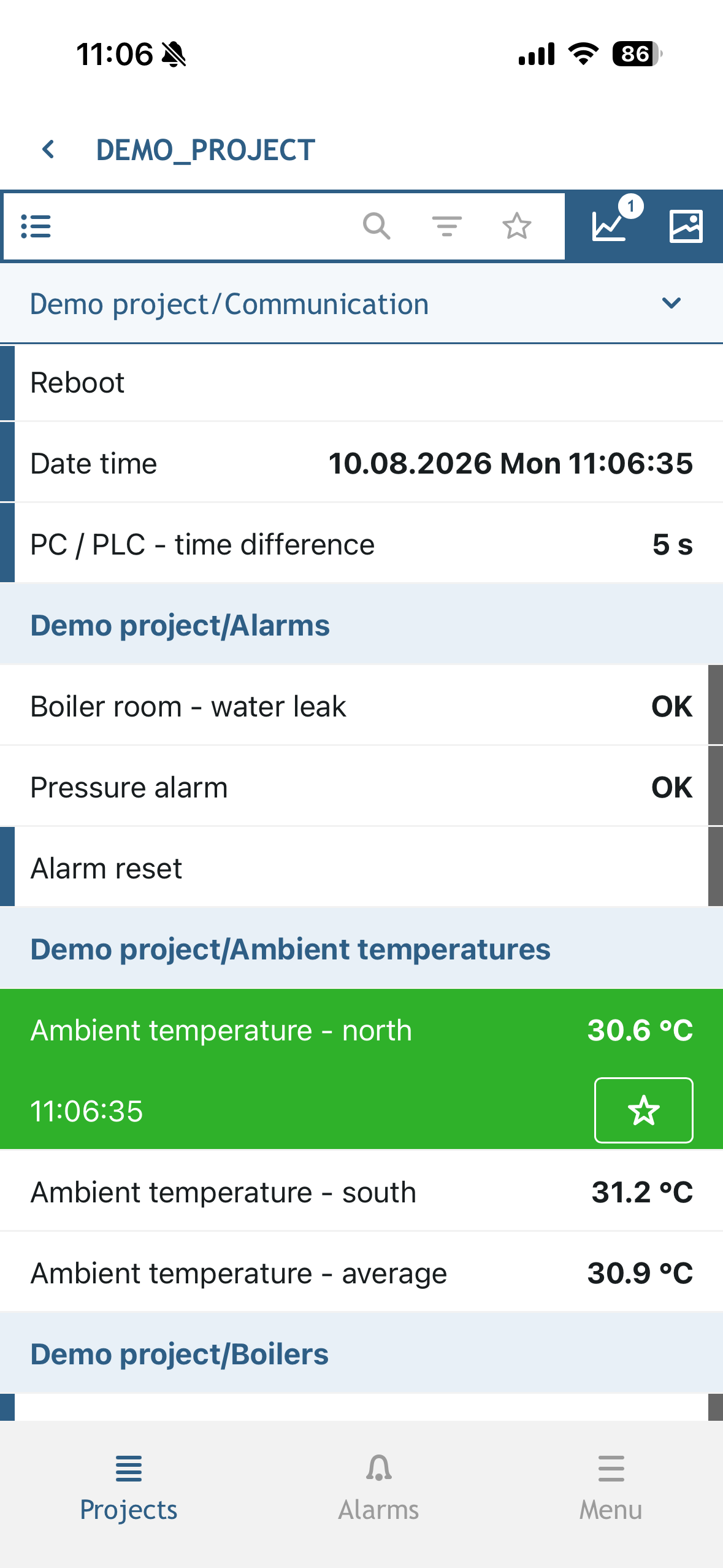
A selected data point, highlighted in green
Alarms
Use the Alarms tab to see an overview of triggered alarms across all your projects.
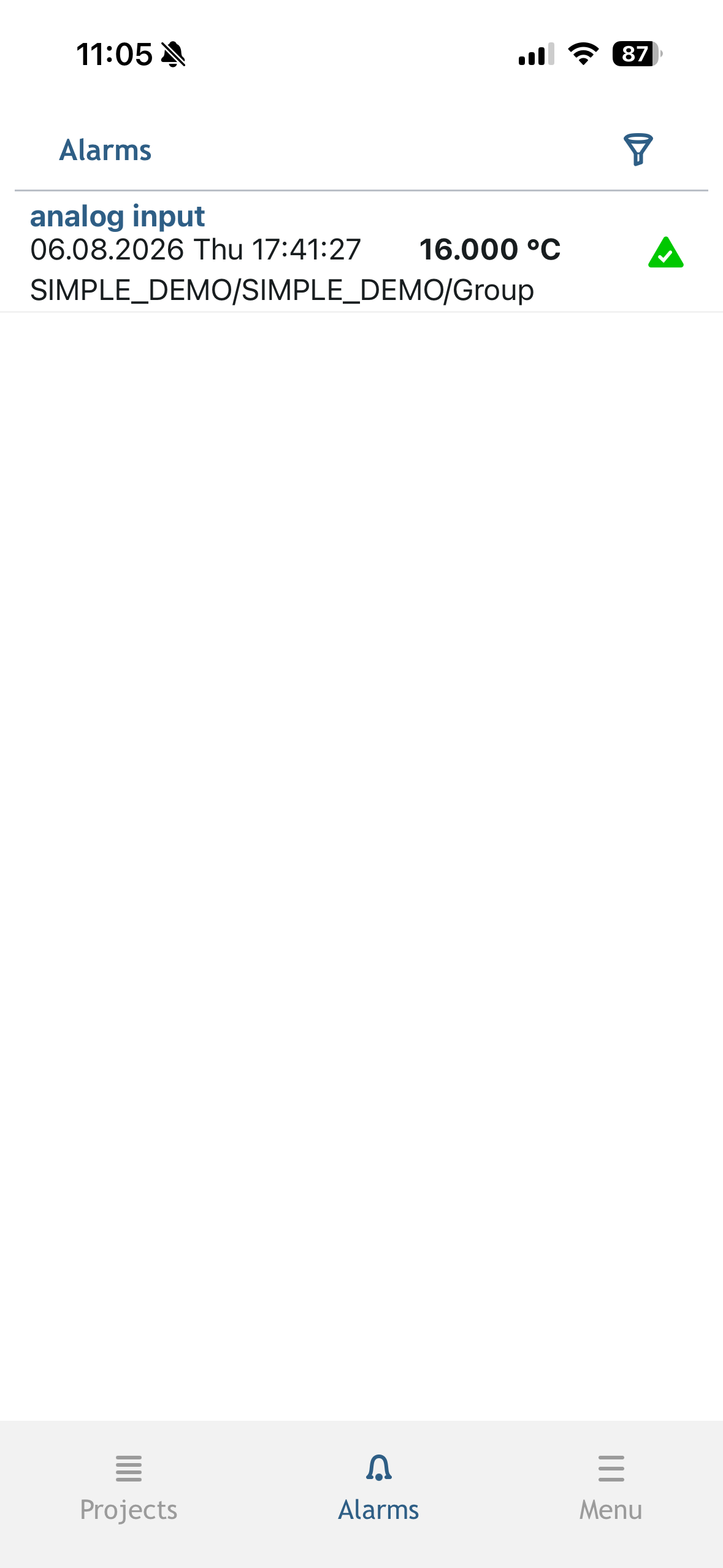
Alarms overview
Profile - User Settings
Here you'll find the settings for your account, along with the option to log out.
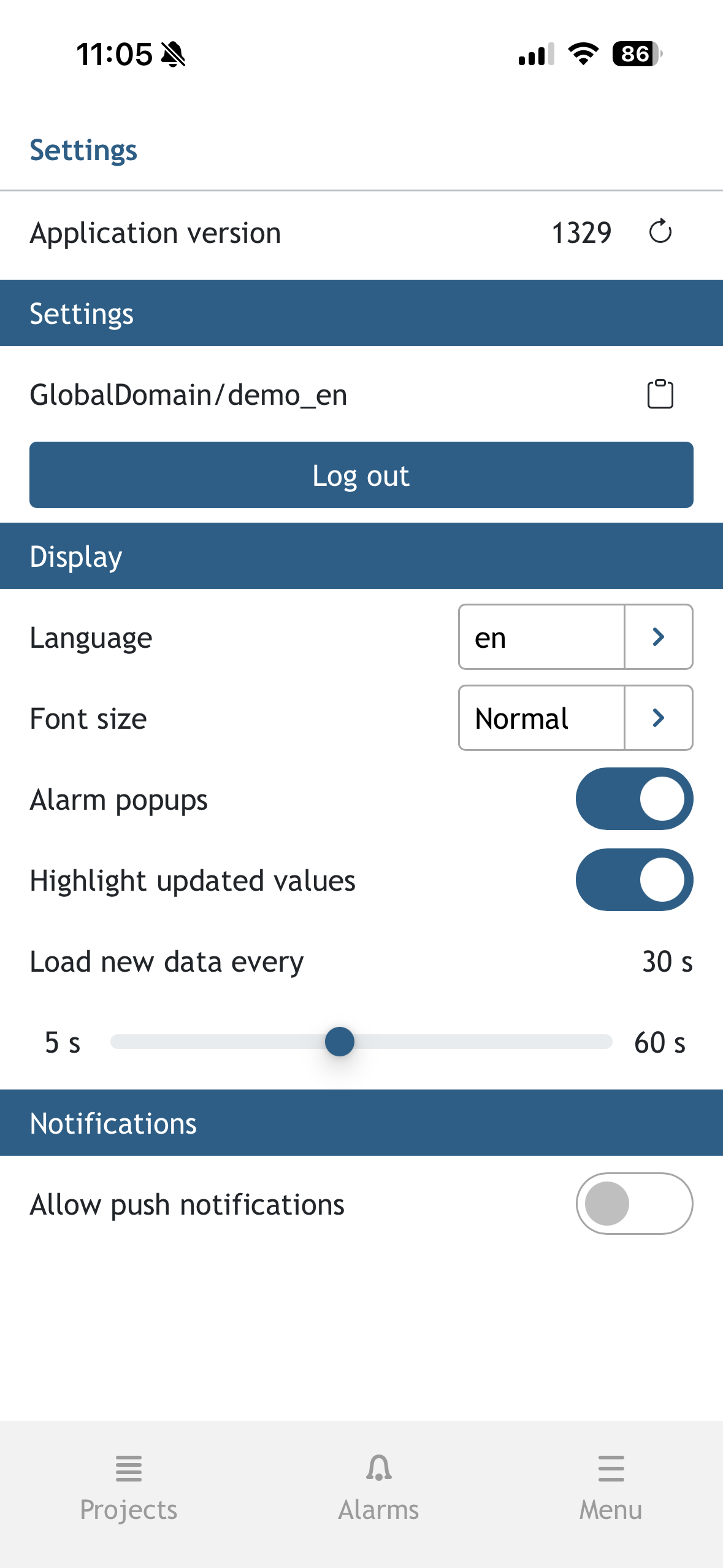
Profile and settings screen